Getting Started with StrydeHR
Welcome to StrydeHR – your streamlined, all-in-one HR management solution. This guide will help you get up and running quickly.
Step 1: Logging In
To begin using StrydeHR:
- Visit strydehr.com
- Click on Login at the top-right corner.
- Use your credentials or sign in via SSO (if enabled).
🎥 GIF Demo: Logging in and accessing the dashboard
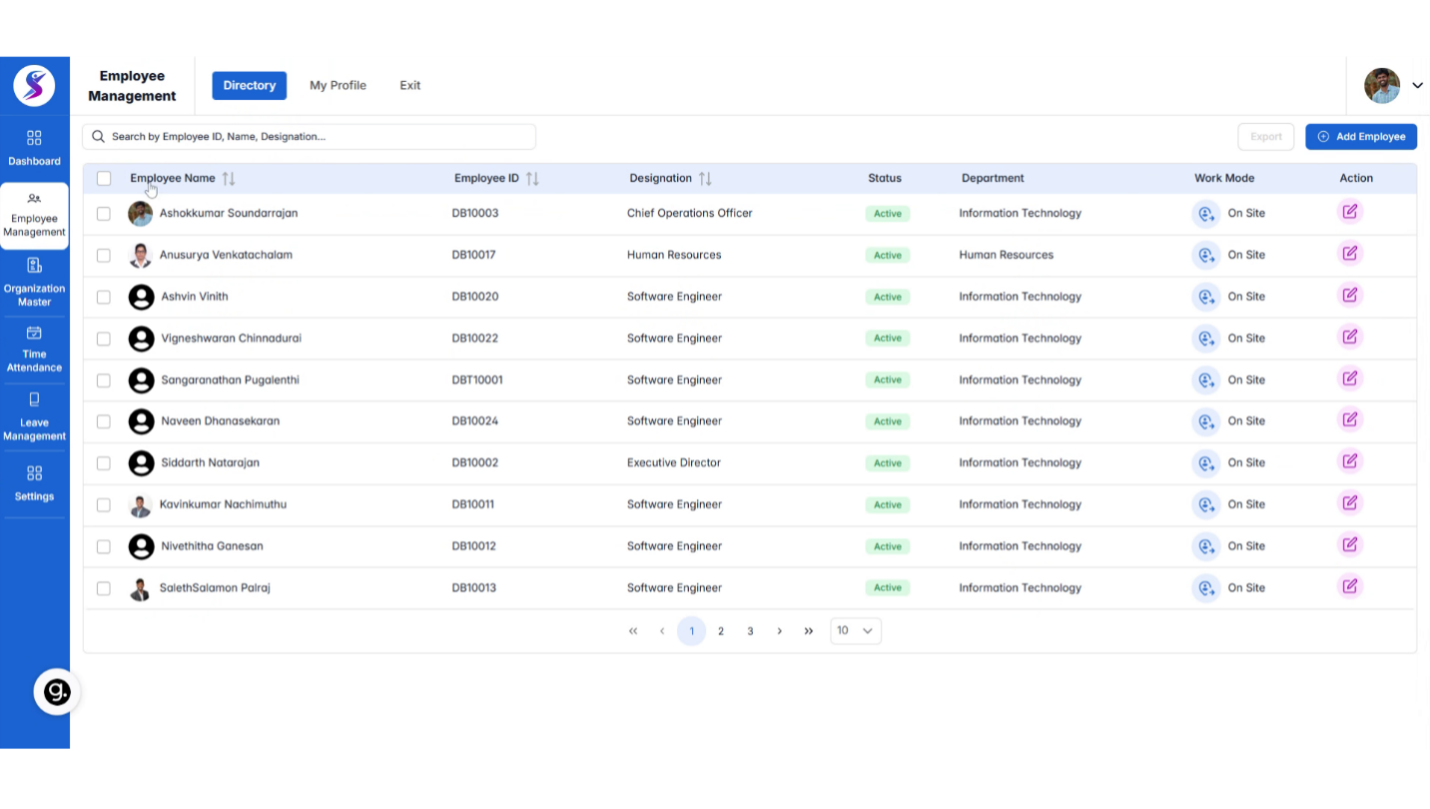
Step 2: Exploring the Dashboard
After logging in, you’ll land on the Dashboard. From here you can:
- View pending tasks
- Navigate to modules like Employee Directory, Leaves, and Attendance
- Get HR alerts and insights
🎥 GIF Demo: Navigating the Dashboard
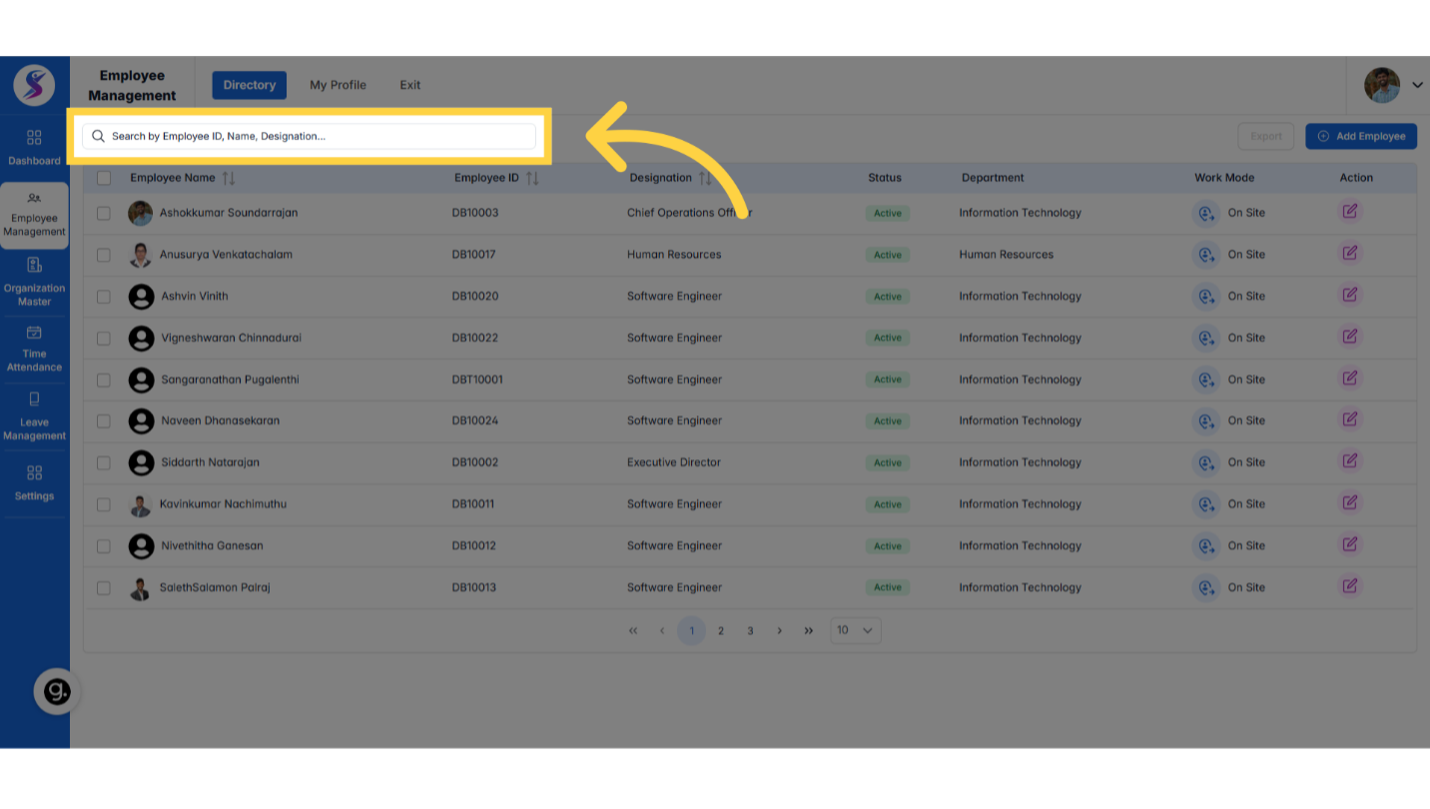
Step 3: Using the Employee Directory
Navigate to Employee Directory to view, sort, and filter employee records.
- Use pagination controls to browse
- Apply filters by department, role, or status
- Sort by joining date, name, or location
🎥 GIF Demo: Directory features in action
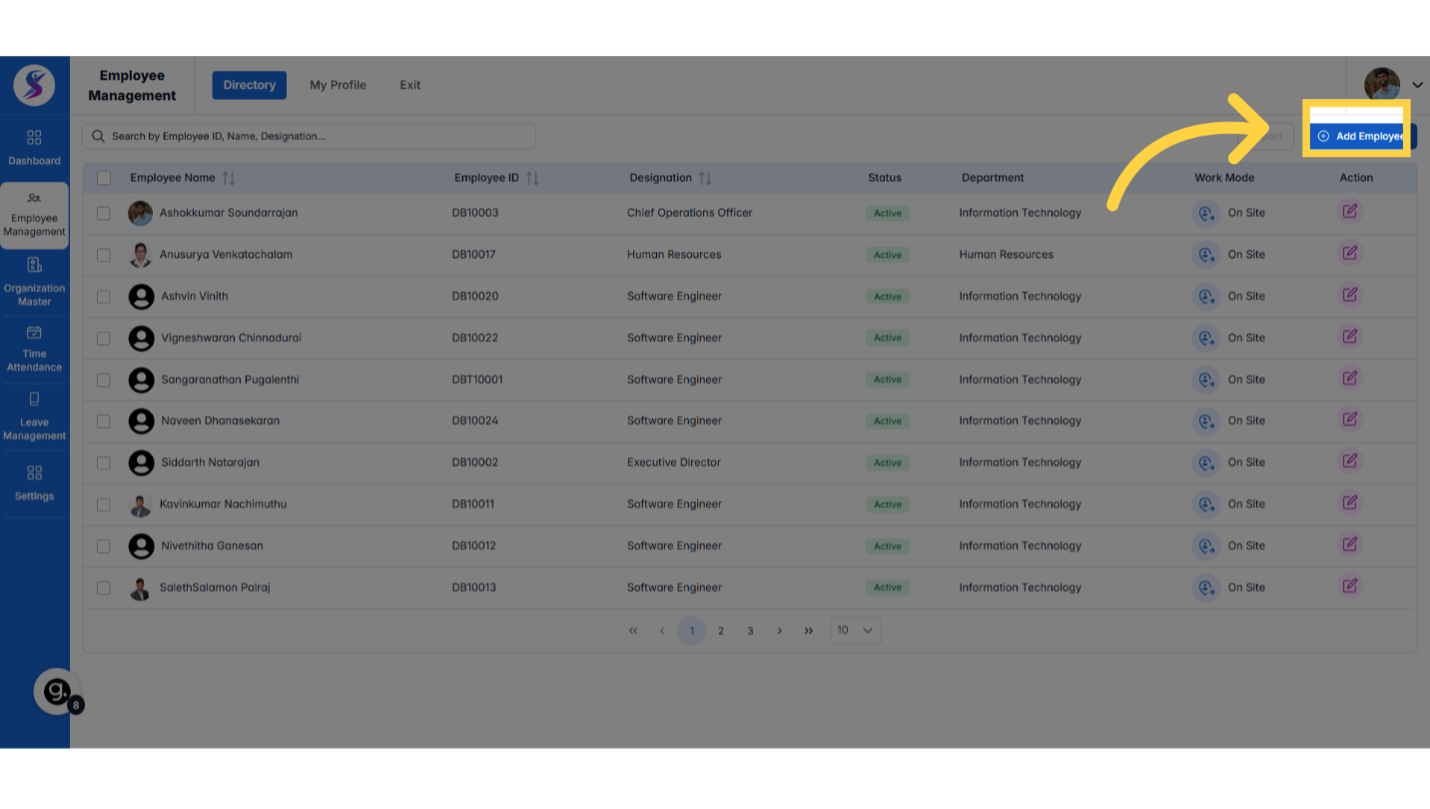
Step 4: Adding a New Employee
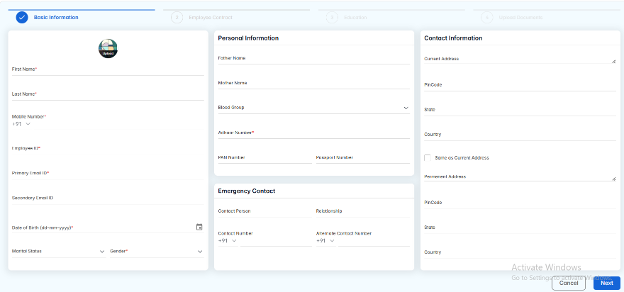
To add a new employee:
- Click the Add Employee button in the Employee Directory
- Fill in required fields like Name, Email, Department
- Submit to onboard the new member
🎥 GIF Demo: Add Employee Workflow
Step 5: Need Help?
- Visit the Support Portal
- Contact your account manager
- Refer to other guides in this documentation
📝 Next up:
Check out Employee Directory → for advanced filters, bulk actions, and profile management.